Installation and Configuration of the Single-Tier "docs.openlinksw.com/uda/" Edition JDBC Driver for ODBC Data Sources (a/k/a JDBC-to-ODBC Bridge), for Mac OS X
Review Preinstallation Documentation: Pre-Installation Requirements
Installation
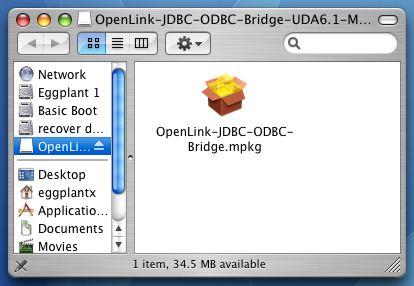
- The Single-Tier "docs.openlinksw.com/uda/" Edition JDBC Driver for ODBC Data Sources is distributed in a single disk image (.dmg) file, which contains a Macintosh Installer package (.mpkg).
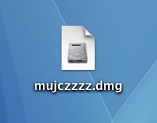
- Double-click the .mpkg to start the installation process.
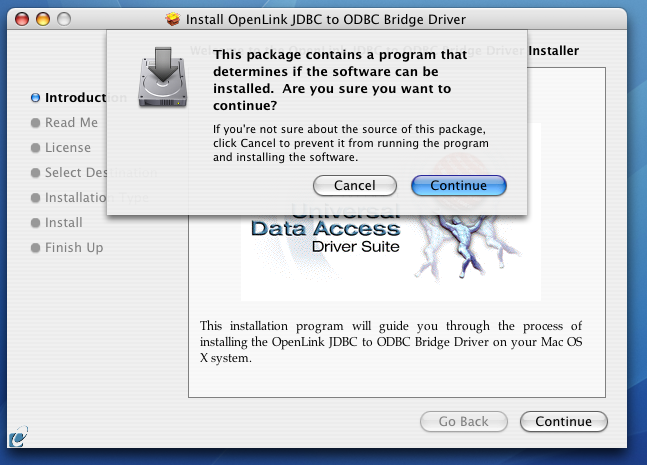
- You will encounter a warning message that will ask you if you are sure that you want to install the software.
Click Continue.
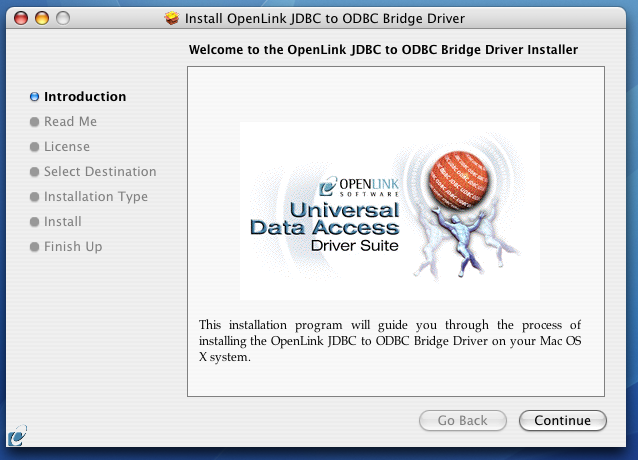
- The installer will display a Welcome message.
Click "Continue."
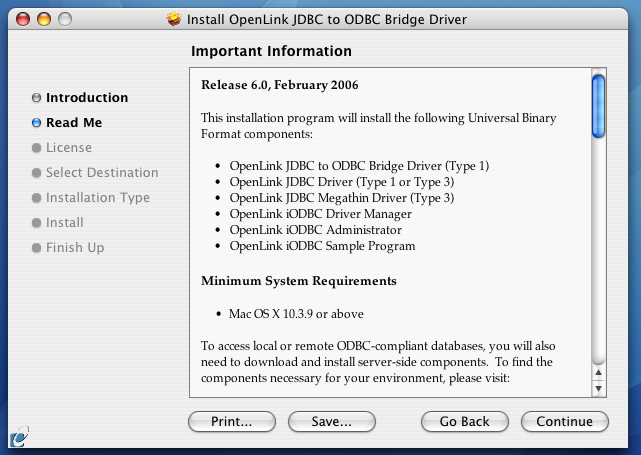
- The next screen will display the Read Me file, including any last- minute updates to these documents.
Please read carefully and click "Continue" when finished.
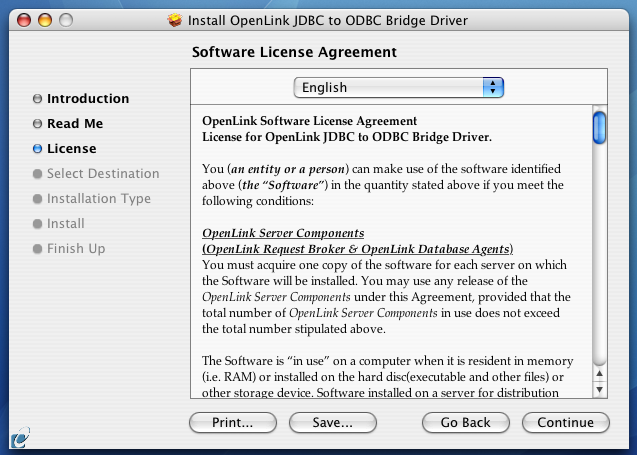
- The next screen will display the License Agreement for the Single-Tier "docs.openlinksw.com/uda/" Edition JDBC Driver for ODBC Data Sources.
Please read and click "Continue."
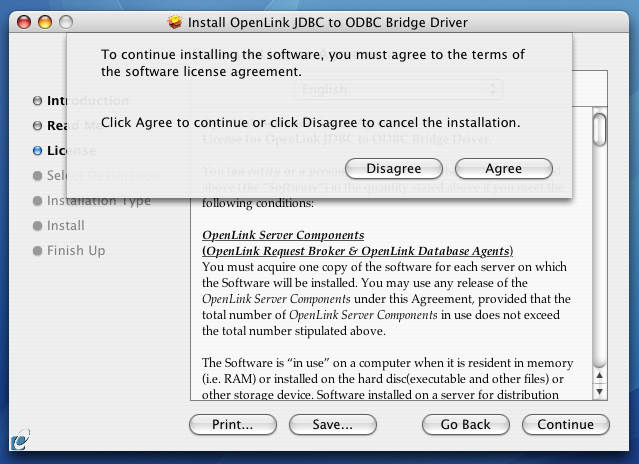
- You will be prompted to "Agree" to continue the installation or "Disagree" to abort.
- You will be asked to select a Destination Volume.
Generally, this should be your Mac OS X boot volume.
Click on the desired disk icon and then click "Continue."

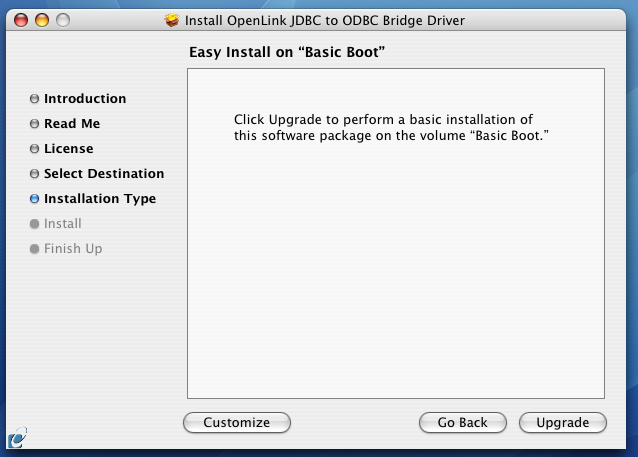
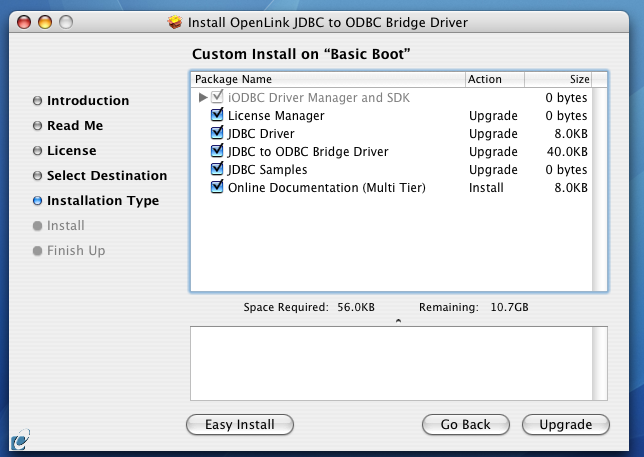
- You may now choose the Easy Install, or if you are an experienced user, you may Customize which components are installed.
We generally recommend the Easy Install.
- If you have installed
OpenLink or iODBC components in the past, click "Upgrade" to continue. Otherwise, click "Install."
- If you chose the custom option, select which of the listed components to install.
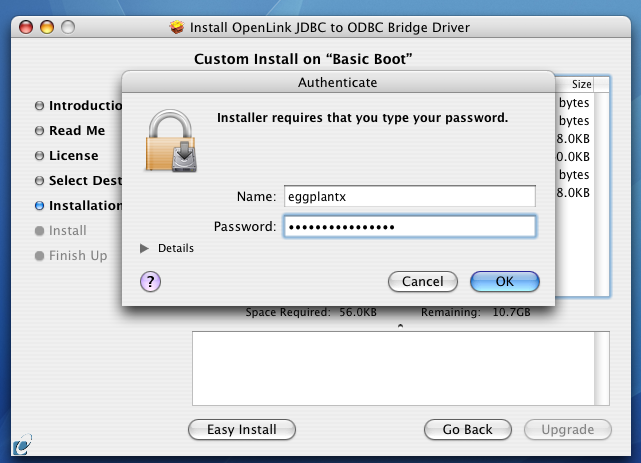
- You must have an Administration username and password to install this driver.
Enter your Mac OS X Username and Password.
- You will be shown a graphical progress bar as the Installation progresses, followed by System Optimization.
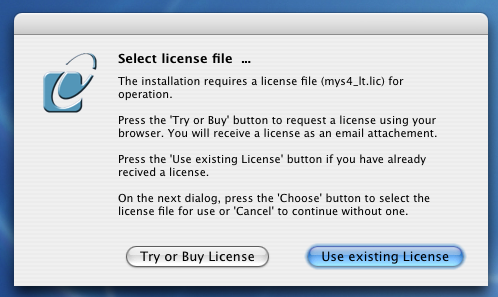
- You will need to locate the license file.
Click "Try or Buy License" to obtain evaluation or commercial licenses from our Web site.
Click "Use Existing License" to select a license on the local file system.
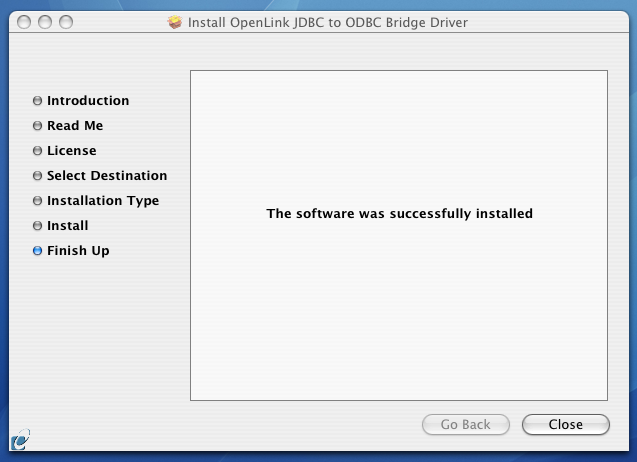
- When the process is complete, you will be told that the software was successfully installed.
Click "Close" and the Single-Tier "docs.openlinksw.com/uda/" Edition JDBC Driver for ODBC Data Sources is ready for use.
Configuration
JDBC client applications always require users to provide the Driver Class Name and Connection URL.
- Driver Class Name -- openlink.jdbc.Driver, openlink.jdbc2.Driver, or openlink.jdbc3.Driver, depending on active JVM.
See detailed documentation.
- Connection URL -- See detailed documentation to construct your local URL, which will be of the form --
jdbc:openlink://ODBC[/DSN=dsn][/UID=uid][/PWD=pwd][/READONLY=x]
For example,
jdbc:openlink://ODBC/DSN=MyOracleDSN/UID=scott/PWD=tiger
- /DSN -- Local ODBC Data Source Name
- /UID -- Database Username
- /PWD -- Database Password
- /READONLY -- Read-write or read-only session mode. Values are "Y" or "N". Default is "N", and this is the effect if unset; i.e., a read-write connection.
- /DSN -- Local ODBC Data Source Name
Sometimes the JDBC client applications also requires the Driver File Name and/or the path to it. Mac OS X uses /Library/Java/Extensions/ as its default CLASSPATH. All JDBC drivers (or aliases or symbolic links to them) should be installed here, and this is what our installer does. The Driver File Name depends on the active JVM -- opljdbc.jar, opljdbc2.jar, or opljdbc3.jar. See detailed documentation.
No further system configuration should be needed.
Next...
Should you decide to purchase a commercial license at the end of your evaluation period, be sure to consult our documentation which explains the placement and uptake of commercial license files and the use of our