Understanding the OpenLink License Manager
Background
As of UDA release 6.0 and above, OpenLink have moved the handling of licenses from individual products into a specific License Manager process.
This takes the form of an executable, (`oplmgr'), from which all OpenLink commercial products request licenses via network connections.
Single-Tier
OpenLink UDA Single-Tier is a single driver installed on the client only.
For releases 6.0, the oplmgr process was started automatically by the driver on first connection.
As of release 6.1, this behaviour has changed; in order to facilitate use of License Manager process for administering licenses of all OpenLink products simultaneously on the same machine, the license-manager must be started explicitly started in advance of services that will use it.
The release 6.1 installers now check if a License Manager (oplmgr) process is already running and if not start their own local instance.
Multi-Tier
OpenLink UDA Multi-Tier drivers comprise at least 3 components: a generic client installed on client machines, all of which contact a central request broker which spawns an RDBMS-specific database agent to connect to the specific database requested.
The request-broker asks the license-manager for licenses for every connection requested.
For UDA release 6.0, the oplmgr process was started automatically by the request-broker (oplrqb).
As of release 6.1, this behaviour has changed.
In order that you should only need one license-manager per server, handling licenses for a variety of products (particularly combinations of Multi-Tier and OpenLink Virtuoso Universal Server), the license-manager must now be explicitly started before other services requiring it.
The release 6.1 installers now check if a License Manager (oplmgr) process is already running and if not start their own local instance.
Starting and Stopping the OpenLink License Manager
The license manager takes the following commandline options:
OpenLink License Manager
Version 1.2.5 as of Tue Jan 08 2008 (Release 6.2 cvsid 00089).
Compiled for Linux 2.6.12-1.1381_FC3 (i686-generic-linux-glibc23-32)
Copyright (C) OpenLink Software.
Usage:
oplmgr [-shrutp] [+start] [+stop] [+reload] [+user arg] [+chroot arg]
[+pidfile arg]
+start start the license manager
+stop stop the license manager
+reload force a configuration reload
+user run as the specified user
+chroot perform a chroot to the specified directory
+pidfile pid file to use for server operation
On Unix-based systems we recommend that you create an /etc/init.d/ script that runs `oplmgr +start' on boot-up.
Location of License files
The location of OpenLink License files varies depending on the Operating system type in use.
Unix
The OpenLink License Manager (oplmgr) will search through directories in the OPL_LICENSE_DIR variable or failing that, the PATH environment variable, for files matching *.lic.
OpenLink recommends you use /etc/oplmgr/ to store your licenses; each product installation will include a copy of the oplmgr executable in its respective 'bin' directory, such that if this is the only OpenLink product on the system, it can be manually started and used for processing licenses with an appropriate OPL_LICENSE_DIR value.
A generic system startup script is also being developed for Unix systems to enable the License Manager process to be automatically started on machine boot.
If found, product installers will automatically append this to your OPL_LICENSE_DIR variable.
Mac OS X
The OpenLink License Manager (oplmgr) will search the "/Library/Application Support/OpenLink/bin" folder where it resides by default, then search through directories in the OPL_LICENSE_DIR variable or failing that, the PATH environment variable, for files matching *.lic .
The OpenLink installer places an automatic startup script on the Mac OS X machine, such that the License Manager is always started on machine startup.
Alternatively the License Manager can be started and stopped manually using the "oplmgr +[start | stop]" commands.
Windows
The OpenLink License Manager uses Windows registry string values to specify the folders to be searched for license files, in the following registry key location:
\\HKEY_LOCAL_MACHINE\\SOFTWARE\\OpenLink Software\\License Manager\\License Directories\\
The OpenLink installer creates the following string key value by default based on the installation directory chosen:
uda = $INSTALLDIR\bin
where $INSTALLDIR = C:\Program Files\OpenLink Software\UDA\bin\ by default
The OpenLink License Manager is installed in the Windows system directory and run as a Windows Service which is automatically started on machine startup.
Alternatively the License Manager can be started and stopped manually using the "oplmgr +[start | stop]" commands.
OpenLink HTTP-based Admin Asisstant License Statistics
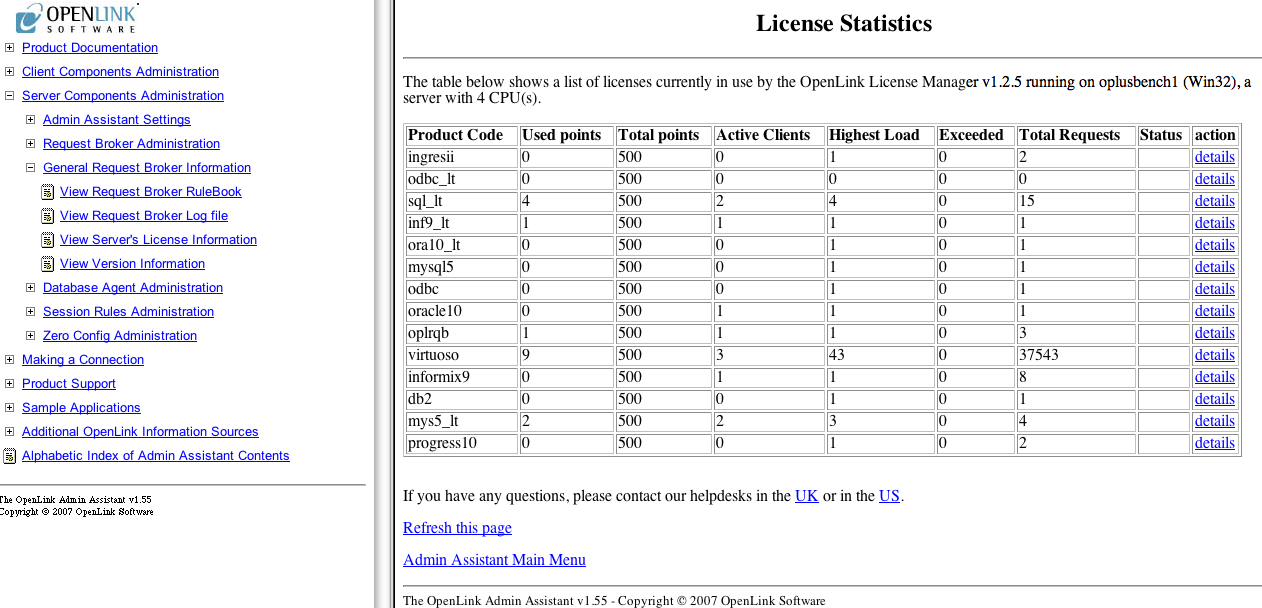
The OpenLink HTTP based Admin Assistant shipped with the Multi-Tier product provides a License statistics page to enable the details of the licenses in use on a given machine to be determined:

Clicking on the "details" link enables more detailed information to be obtained specified license:
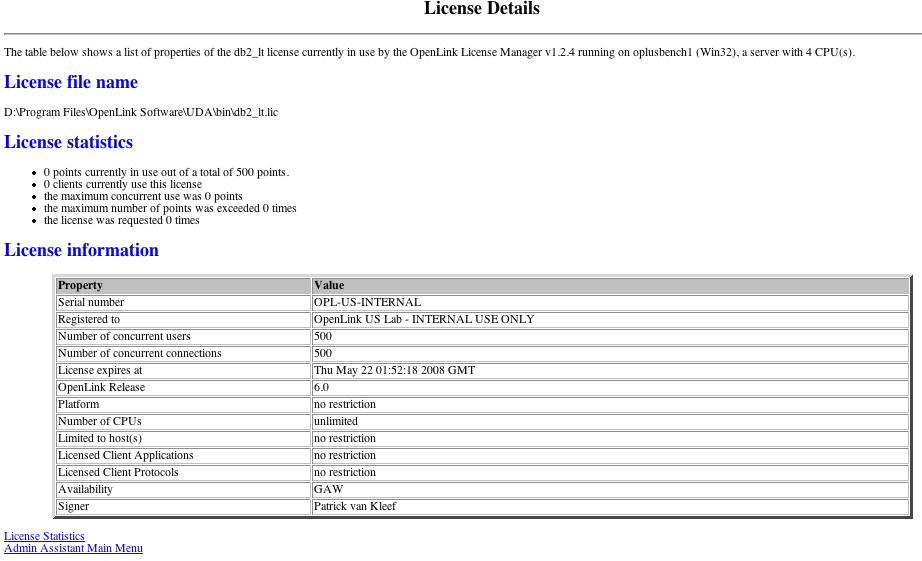
Note these pages display the number of core processors (CPUs) the License Manager has detected on the host it is running on.
OpenLink HTTP-based ODBC Administrator License Statistics
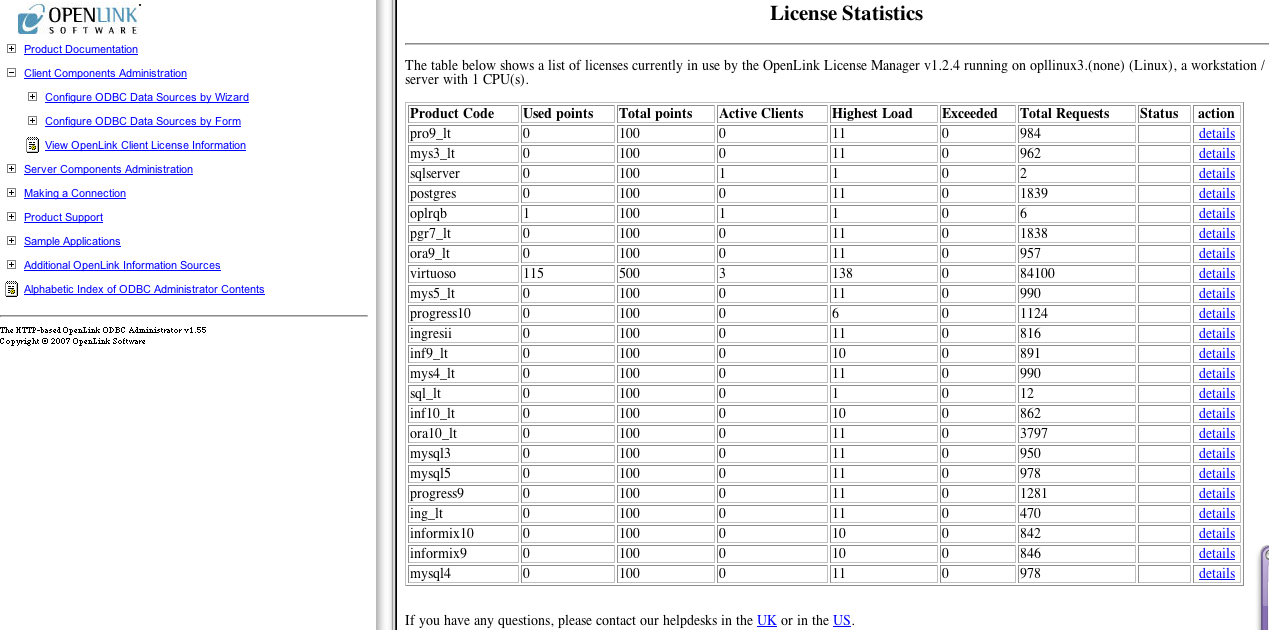
The OpenLink HTTP-based ODBC Administrator shipped with the Unix Single-Tier product provides a License statistics page to enable the details of the license in use on a given machine to be determined:

Clicking on the "details" link enables more detailed information to be obtained specified license:
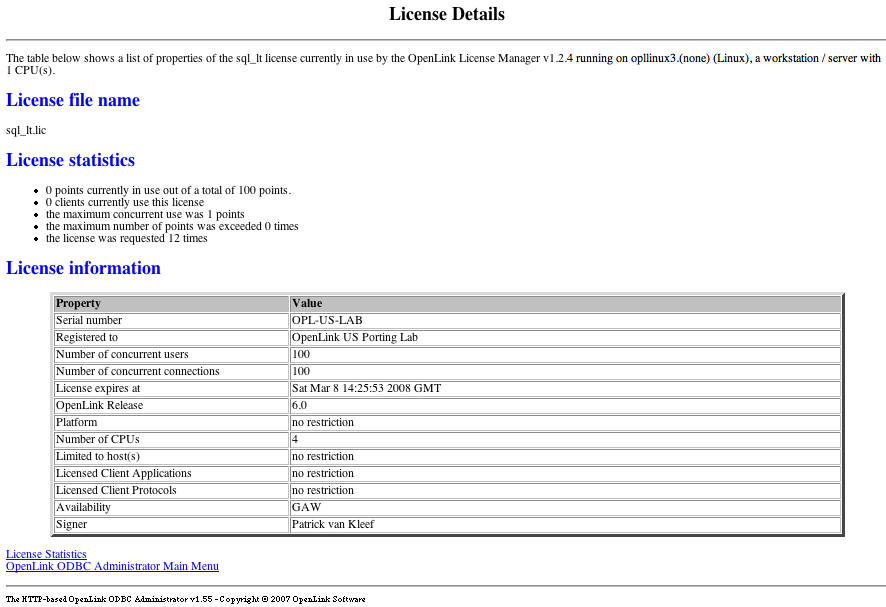
Note these pages display the number of core processors (CPUs) the License Manager has detected on the host it is running on.
OpenLink License Manager Networking Considerations
The OpenLink License Manager sends and receives using the multicast IP address 224.0.0.24 on port 60001/udp to communicate between components and other license-managers that might be on your network.
In the event that it cannot establish this multicast communication, it may cease allocating licenses, so in the event of license allocation-related errors, please check your firewall configuration permits this traffic.