Installation and Configuration of the Lite Edition (Single-Tier) ODBC Driver for DB2 Data Sources, for Windows
Review Preinstallation Documentation: Pre-Installation Requirements
Installation
- The Lite Edition (Single-Tier) ODBC Driver for DB2 is distributed in a single
.msifile.
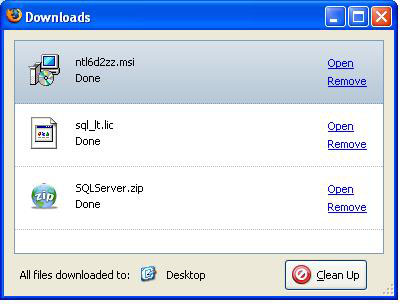
- Click the Open link that appears in your Downloads dialog.
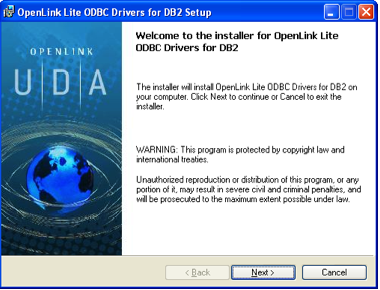
- The installer will display a Welcome message.
Click "Next."
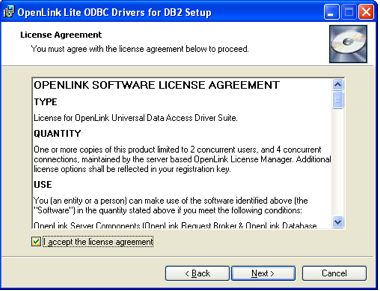
- The next screen will display the License Agreement for the
OpenLink Lite Driver. Please read and check the "I accept the license agreement" checkbox. Then, click Next.
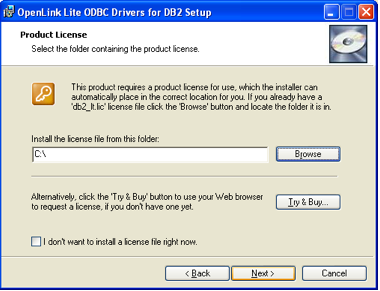
- The driver needs a license file to operate.
Click the Browse button to locate a commercial or evaluation license that you have previously downloaded onto your local hard drive.
Alternatively, click the Try & Buy button to obtain a commercial or evaluation license.
You can also tick the "I don't want to install a license file right now" check box.
This option will permit you to install the product; however, you will not be able to use the product until you obtain a commercial or evaluation license key.
- Click Next.
- Choose from the Typical, Complete, and Custom installation types.
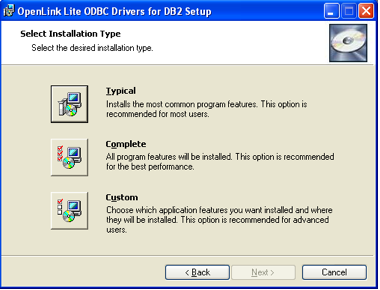
- Click Next.
- Click the Install button.
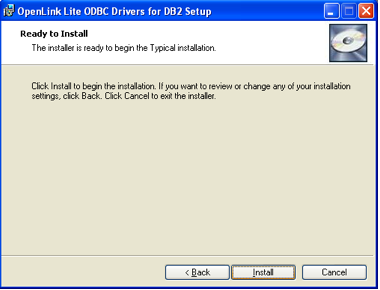
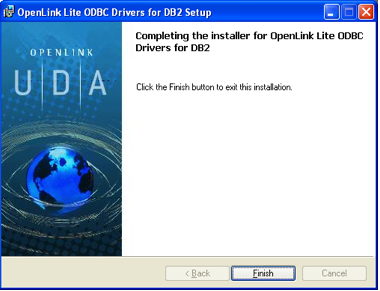
- Installation is complete.
Click the Finish button.
- You may be prompted to restart your computer, if you have a pre-existing
OpenLink License Manager running on your computer. This reboot not always necessary, but is generally recommended.
Configuration
- Launch the ODBC Administrator appropriate to the bitness (32-bit or 64-bit) of your client application and driver.
- Click the System DSN tab.
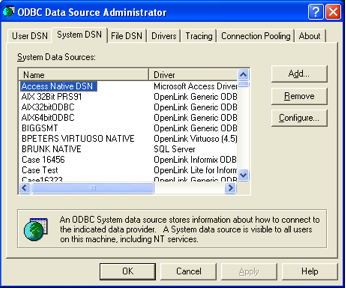
- Click the Add button.
Then, select the
OpenLink "Lite" Driver for DB2 from the list of available drivers. Select the Unicode version of the driver if and only if you are working with multi-byte character sets, as unnecessary translations can significantly affect ODBC performance.
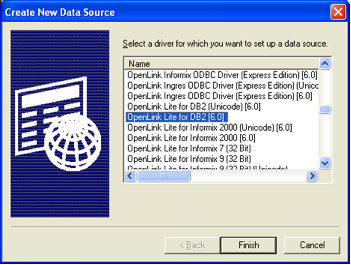
- Click Finish.
- The first dialog prompts for a Data Source Name and optional description.
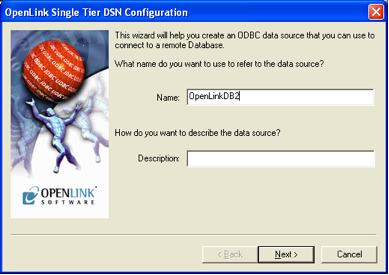
- Click Next.
- The second dialog prompts for information that identifies the DB2 DBMS.
It also provides a checkbox that allows you to check your basic connection parameters before setting advanced and optional settings.
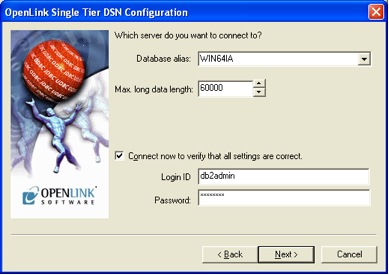
- Database alias - A DB2 Connect alias that identifies the remote DB2 DBMS
- Max.
long data length - Controls the maximum length of SQL_LONGVARCHAR and SQL_LONGVARBINARY data that drivers can return.
It works in conjunction with the "Deferred fetching of long data" parameter.
When off, this setting limits the amount of memory which may be allocated for a dataset cell to hold the retrieved value.
The value is truncated to this length.
The default limit is 60000 bytes.
- Login ID - A DB2 username
- Password - A valid DB2 database
- Database alias - A DB2 Connect alias that identifies the remote DB2 DBMS
- Click Next to continue.
- The third dialog enables you to set optional ODBC connection parameters.
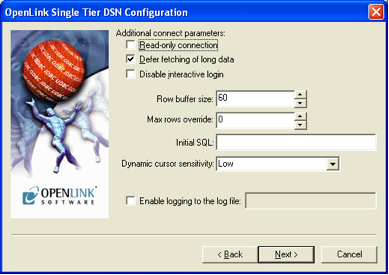
- Read-only connection — Specifies whether the connection is "Read-only." Must be unchecked to INSERT, UPDATE, or DELETE records, and to run some Stored Procedures including some built-in functions.
- Defer fetching of long data — Defers fetching of LONG (BINARY, BLOB, etc.) fields in wildcard queries.
This provides significant performance increases when fields in query do not include LONG data fields.
- Disable interactive login — Suppresses the ODBC "Username" and "Password" login dialog boxes when interacting with your ODBC DSN from within an ODBC compliant application.
- Row Buffer Size — This attribute specifies the number of records to be delivered from the driver to the client application in a single batch.
Values can range from 1 to 999.
- Max Rows Override — Allows you to set a limit for the maximum number of rows to be returned from a query.
The default value of 0 means no limit.
- Initial SQL — Lets you specify a file containing SQL statements that will be run automatically against the database upon connection.
- Dynamic Cursor Sensitivity — Enables or disables the row version cache used with dynamic cursors.
When dynamic cursor sensitivity is set high, the Cursor Library calculates checksums for each row in the current rowset and compares these with the checksums (if any) already stored in the row version cache for the same rows when fetched previously.
If the checksums differ for a row, the row has been updated since it was last fetched and the row status flag is set to SQL_ROW_UPDATED.
The row version cache is then updated with the latest checksums for the rowset.
From the user's point of view, the only visible difference between the two sensitivity settings is that a row status flag can never be set to SQL_ROW_UPDATED when the cursor sensitivity is low.
(The row status is instead displayed as SQL_ROW_SUCCESS.) In all other respects, performance aside, the two settings are the same.
Deleted rows don't appear in the rowset.
Updates to the row since the row was last fetched are reflected in the row data, and inserted rows appear in the rowset, if their keys fall within the span of the rowset.
If your application does not need to detect the row status SQL_ROW_UPDATED, you should leave the High Cursor Sensitivity checkbox unchecked, as performance is improved.
The calculation and comparison of checksums for each row fetched carries an overhead.
If this option is enabled, the table oplrvc must have been created beforehand using the appropriate script for the target database.
- Enable logging to the log file — Check the checkbox and use the associated textbox to provide the full path to a file in which to log diagnostic information.
- Read-only connection — Specifies whether the connection is "Read-only." Must be unchecked to INSERT, UPDATE, or DELETE records, and to run some Stored Procedures including some built-in functions.
- Click Next to continue.
- The fourth dialog enables you to set additional parameters to enhance compatibility with applications.
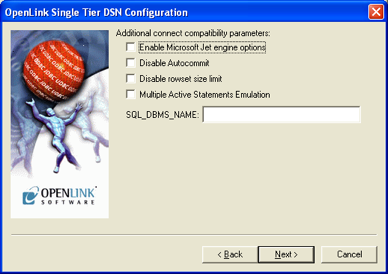
- Enable Microsoft Jet engine options — Facilitates translation of certain data types for the Microsoft Jet Engine.
If you notice that money and other datatypes are mishandled with Microsoft or other applications, test with Jet fix enabled.
- Disable
Autocommit — Changes the commit behavior of the OpenLink driver. The default mode is AutoCommit (box unchecked).
- Disable rowset size limit — Disables a limitation enforced by the cursor library.
This limitation is enforced by default.
It prevents the driver from claiming all available memory when a resultset (typically generated by an accidental query) is very large.
The limit is not normally reached.
- Multiple Active Statements Emulation — Enables use of Multiple Active statements in an ODBC application even if the underlying database does not allow this,, by emulation within the driver.
- SQL_DBMS Name — Manually overrides the SQLGetInfo(SQL_DBMS_NAME) response returned by the driver.
This is required for products like Microsoft
InfoPath for which the value should be "SQL Server".
- Enable Microsoft Jet engine options — Facilitates translation of certain data types for the Microsoft Jet Engine.
If you notice that money and other datatypes are mishandled with Microsoft or other applications, test with Jet fix enabled.
- Click Next to continue.
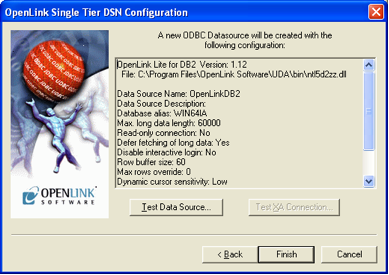
- The final dialog enables you to test your Data Source.
Click the Test Data Source button.
Next...
- Test your DSNs with our sample program.
- If anything isn't working as you expect, including errors resulting from the test above, see our Troubleshooting Resources.
- Should you decide to purchase a commercial license at the end of your evaluation period, be sure to consult our documentation which explains the placement and uptake of commercial license files and the use of our
OpenLink License Manager technology: License Technology & Application.