InteractiveSparqlQueryBuilderOverview
Basic iSPARQL Overview
- Go to iSPARQL demo page.
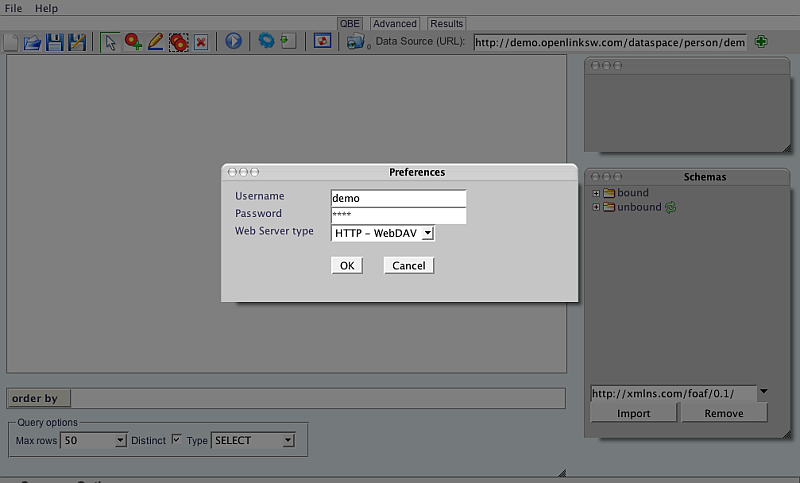
- By default, user name
demoand security-masked passworddemoshould be in the Login form. Click "Ok".
- You will now see the iSPARQL home page, opened to the QBE tab, with the default graph elements shown on the Canvas.
iSPARQL Menu Bar
The iSPARQL Menu Bar consists of the following Menus:
-
File: From here you can
- Reset the QBE Canvas;
-
Open already saved
.rqor.isparqlfile; - Save / Save As the current workflow.
- Help: contains useful Virtuoso documentation links and information about the iSPARQL package.
QBE Tab
The QBE tab is opened by default after successful login to iSPARQL.
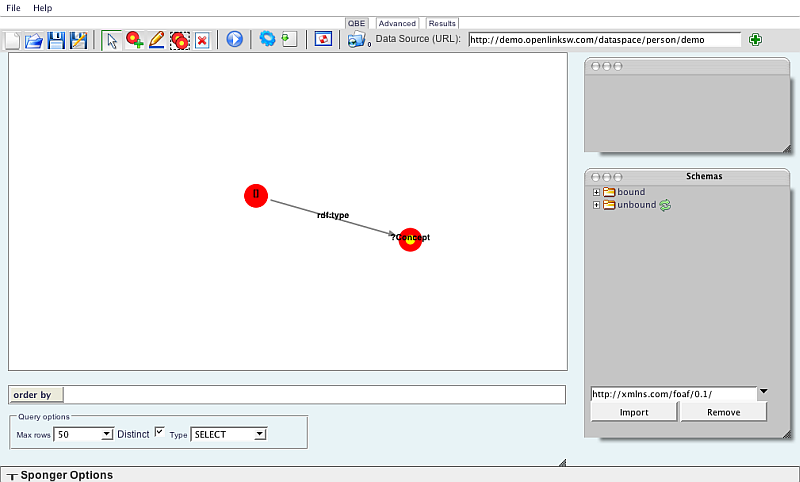
It consists of the following items:
-
Toolbar: The toolbar items have tooltips, so you may take a look at each of them.
At the far right side of the toolbar is the Data Source URI field.
By default its value is taken from the "
DefaultGraph" keyword in the[SPARQL]section in thevirtuoso.ini, e.g.:
http://demo.openlinksw.com/dataspace/person/demo
- Canvas pane: shown below the toolbar, on the left side of the page.
- Schemas pane: shows the imported schemas. Divided into bound and unbound. The Classes and Properties of each schema are shown in a tree-mode view.
- Node pane: Shows properties for selected Node form the Canvas.
- Order by text entry field:
-
Query options:
- Max Rows menu: it is shown under the Canvas. Select a limit for the result set (10, 20, 50, 100, 200, unlimited).
- Distinct checkbox: Show any result-row once, i.e., eliminate duplicate rows. Checked, by default.
-
Set SPARQL Query Type —
- SELECT:
- CONSTRUCT:
- DESCRIBE:
- INSERT:
- DELETE:
-
Sponger options:
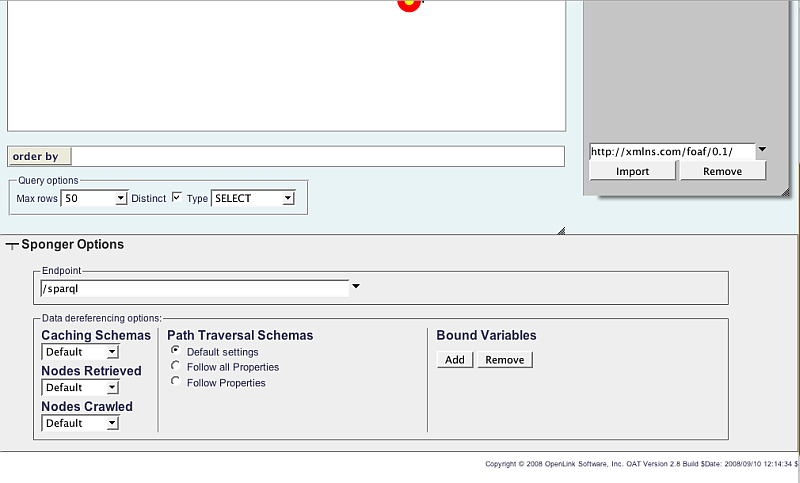
- Endpoint combo box: Select from menu or enter new SPARQL endpoint to which queries will be directed.
-
Data dereferencing options
-
Caching Schemas menu —
- Default:
- Automatic:
- None:
-
Nodes Retrieved: maxrows sparql pragma
-- Example
define input:grab-limit 50
- Default:
- Max 100
- Max 200
- Max 300
- Max 400
- Max 500
-
Nodes Crawled menu: Transitive / Navigation properties designation for N degrees of Separation (Transitive Option supported in Virtuoso 6.0)
-- Example
define input:grab-depth 10
- Default:
- Max 1
- Max 2
- Max 3
- Max 4
- Max 5
- Max 6
- Max 7
- Max 8
- Max 9
- Max 10
-
Path Traversal Schemes radio buttons: sets the Graph Sponging Options
-- Example
define input:grab-follow-predicate
<http://usefulinc.com/ns/doap#developer> or define input:grab-all
- Default setting:
- Follow all properties:
- Follow Properties:
-
Bound Variables:
-- Example for ?projectName to be crawled/de-referenced.
define input:grab-var "projectName"
- Add button:
- Remove button:
-
Caching Schemas menu —
Advanced Tab
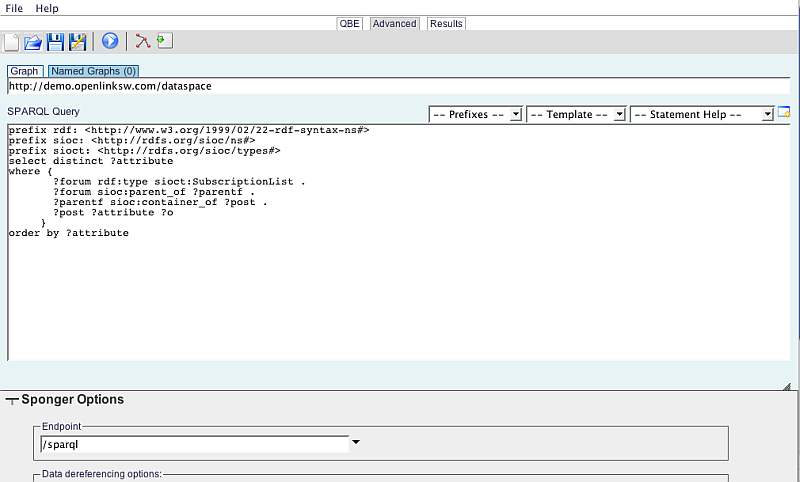
Here you can build your queries, manually setting Graph value, or adding new one from tab Named Graphs
-
Toolbar: The toolbar items have tooltips, so you may take a look at each of them.
The basic items are:
- Reset: Clears the SPARQL Query text-area;
- Open: Opens the Virtuoso WebDAV Browser, from which you can select a file containing a specific SPARQL query.
-
Save: Opens the Virtuoso WebDAV Browser to save the current query to a DAV location, as a file with
.rqextension. You can change the extension to.isparql. - Save As : Opens the Virtuoso WebDAV Browser to save the current query to a DAV location, as a file with any extension.
- Run Query: Causes the query to be executed.
- Visualize: Shows the built graph in the QBE Canvas.
- Get from QBE.: Gets the query corresponding to the graph in the QBE Canvas.
- The SPARQL Query area displays your current query and lets you modify it manually and/or using the drop-down lists for Prefixes, Templates, and Statement Help.
Results Tab
Shows the results of executing the SPARQL Query.
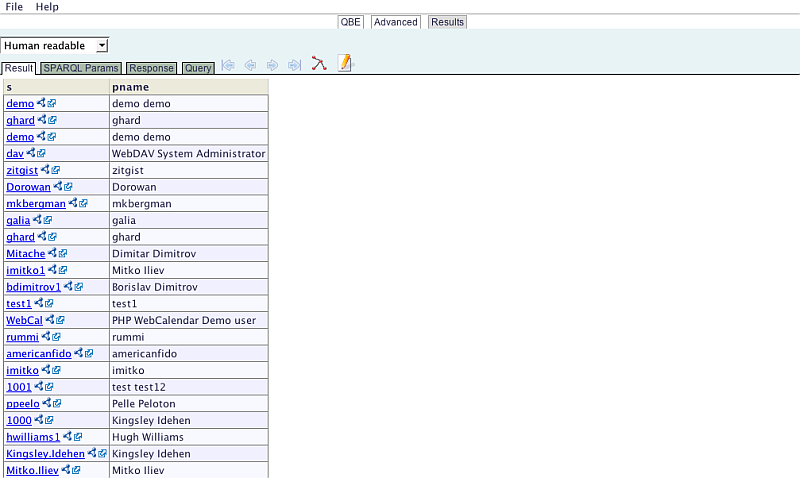
It consists of several sub-tabs:
- Result tab: Opened by default, it shows the result found from executing the SPARQL query.
- SPARQL Params tab: Shows the values of SPARQL Query parameters .
- Response tab: Shows the response information of executing the SPARQL query.
- Query tab: Shows the SPARQL query.
- Blue arrows beyond the Query tab: Allow navigation among the queries you have already executed.
- Graph-like icon with tooltip "Load Query to QBE": Redirects to the QBE tab with the built graph in the Working Pane.
- Edit-document-like icon with tooltip "Load Query to Advanced": Redirects to the Advanced tab where you can edit your query.
See Also
- iSPARQL REST Mode Support
- Basic iSPARQL Tutorial with query built from a blank canvas and pre-typed Nodes
- Basic iSPARQL Tutorial with query built from a blank canvas and Nodes dragged from the Toolbar
- Basic iSPARQL Tutorial
- iSPARQL Querying Tutorial with SPARQL Query type "CONSTRUCT"
- iSPARQL Querying Tutorial with SPARQL Query type "DESCRIBE"
- iSPARQL Querying Tutorial with SPARQL Query type "INSERT"
- iSPARQL Querying Tutorial with SPARQL Query type "DELETE"
- iSPARQL Querying Tutorial with SPARQL Query type "SELECT"
Tagcloud
Category SPARQL Category RDF Category OpenSource Category OAT Category Documentation Category WebSite